
Summary:
VendorProof supports bulk vendor data uploads via SFTP (FTP over SSH) or manual file upload. Files must be placed in specific integration subdirectories (e.g., vendor_add, vendor_update) for processing; others will be ignored. To connect, use sftp.providertrust.com, port 22, with assigned credentials. Data can be transferred via command line, libraries, or client apps like FileZilla. After processing, files are deleted for security, and users receive status emails. Errors require correction and re-upload for successful processing.
___________________________________________________________________________________
FTP (File Transfer Protocol) is one of two methods available for bulk data input into the VendorProof system. Alternatively, data can be uploaded manually within VendorProof. Detailed instructions are available here: Uploading a Vendor File
The Vendor File remains consistent whether the process is automated via FTP or manually uploaded through the User Interface.
Server Access
The URL to access the SFTP server is: http://sftp.providertrust.com
Data Mode Folder
Within each home directory (/), there exists an integration directory containing nine subdirectories. These subdirectory names are predefined and correspond to the combination of three import modes (add, add/update, and replace) and three import data file types (provider data, credential data, and user data). The system will exclusively download files located within these nine subdirectories and will IGNORE all other files stored in directories with different names, including the organization's root directory.
| Subdirectory Name | Import Data File Type | Import Mode |
|---|---|---|
| vendor_add | vendor data | Add mode |
| vendor_update | vendor data | Add/Update mode |
Example SFTP Directory Structure
Assuming the account for Hospital A has been configured, logging in with the corresponding username and password will place the user in that account’s home directory:
/
integration
vendor_add
vendor_update
There are three common methods for transferring data using FTP: the command line interface available on nearly all systems, a transfer agent or library integrated within an application, or a client application such as FileZilla. The use of a library depends heavily on the specific agent or library employed.
The command line interface is universal: sftp username@sftp.providertrust.com:targetdirectory
For example, if the user ‘user1’ wishes to connect and be placed in the integration/vendor_update directory, the command would be:
sftp user1@sftp.providertrust.com:integration/vendor_update
The user will be prompted to enter the account password and then placed in the specified remote directory.
The following information is required to establish an SFTP connection:
Host: sftp.providertrust.com
Port: 22
Protocol: SFTP
Username and password, as assigned by the VendorProof administrator
Optionally, the target directory (other than the user's account root) to be accessed upon successful login.
When using a client application such as FileZilla, the required information remains the same, although the method of input differs.
Uploading Files via FileZilla:
-
- Once FileZilla is launched, click the left-most icon in the command bar to open the Site Manager:

-
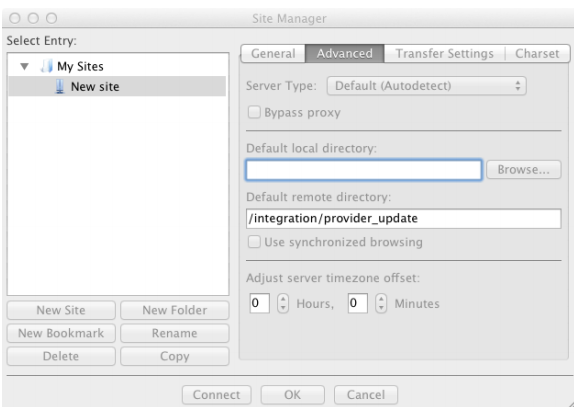
- Enter the account information, then navigate to the Advanced tab:
-
- Specify any default remote directory to be accessed upon startup. Click the Connect button at the bottom of the window.
- Upon successful connection, the main interface will appear as follows:

- Users may drag and drop files from their local machine into the designated directory on the server.
- Following data processing, files will be automatically deleted from the VendorProof server to enhance security. A status email will be sent to the originally designated user(s), indicating whether the data was processed successfully. In the event of failure, the email will include a summary of issues and corrective actions. Additionally, the Integration Submitted Files interface provides detailed information on both successful and unsuccessful submissions.
- For files that failed processing, please correct the issues and re-upload the file. It will be processed during the next scheduled job.
Comments
0 comments
Article is closed for comments.